
Please follow these steps below to verify your setup, and feel free to check out our Ambisonics Quick Setup Guide here as a step1:
- Ensure you have an ambisonic bus set as your Main Mix.
- Open your Studio -> Audio Connections, and on the Outputs tab, create a 1st, 2nd, or 3rd order Ambisonics bus.
- Right-click to set it as “Main Mix.”
- Disconnect your audio device from this bus.
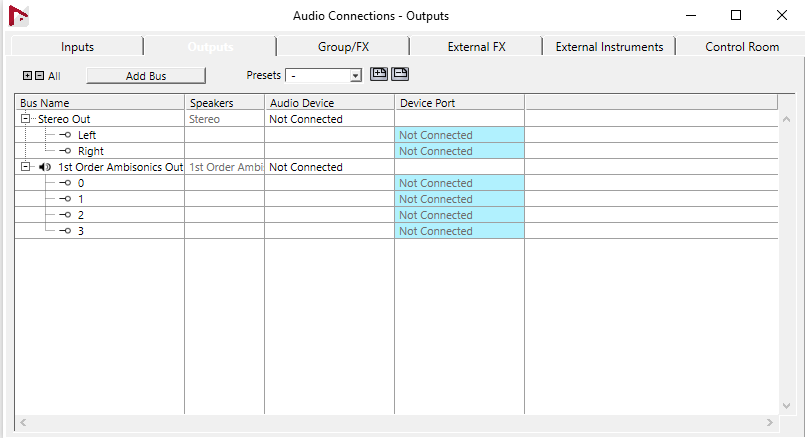
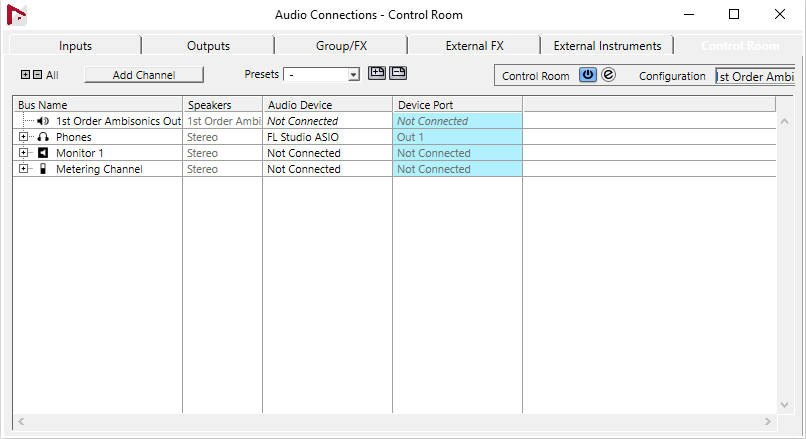
- Click on the “Control Room” tab and Make sure you select your headphone audio devices in the “Phones” Audio Device and Port.
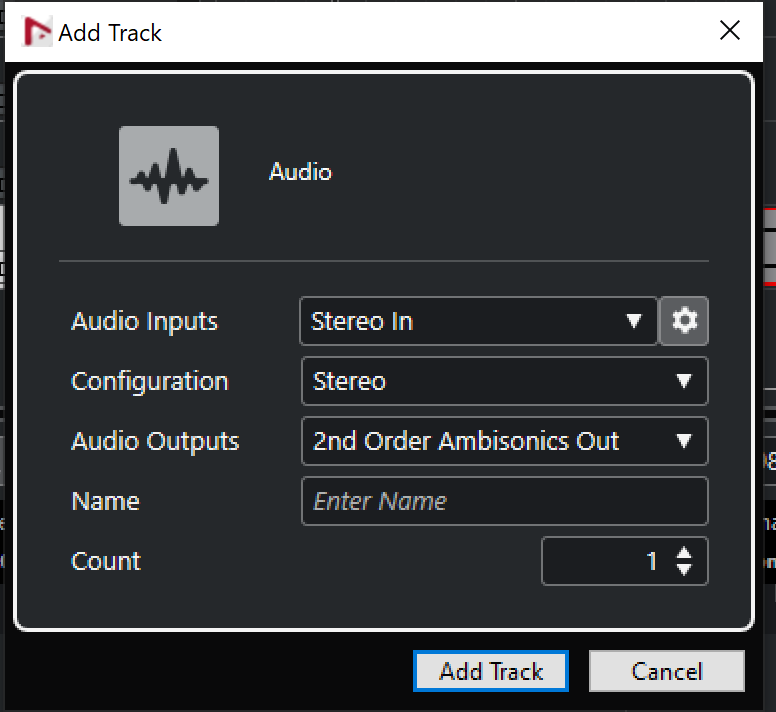
- Create a new audio track, and select 1st, 2nd, or 3rd Order Ambisonics Out as your Audio Output.
- Go to Nuendo -> Preferences-> VST -> Control Room and enable “Use Phone Channel as Preview Channel.” Click on “Apply” and then “OK.”
- For further instructions on how to set up ambisonics audio, please visit the Steinberg Support channels https://helpcenter.steinberg.de/hc/en-us.
Comments
0 comments
Please sign in to leave a comment.